Phone
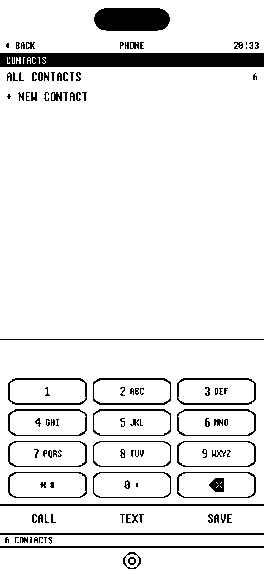
Favourites, search, everyone you know. Big type. Easy to hit.
HowYour real address book, live. Recents only log calls you placed from here.
 1bit
--:--
1bit
--:--
Reference
What is in it, how to set the phone up, and a few things worth knowing. Boring on purpose. The app is the fun part.
The short version of setting up. Every step is further down, and you can stop after any of them.
Every row on the launcher, what it is for and how it works.
Favourites, search, everyone you know. Big type. Easy to hit.
HowYour real address book, live. Recents only log calls you placed from here.
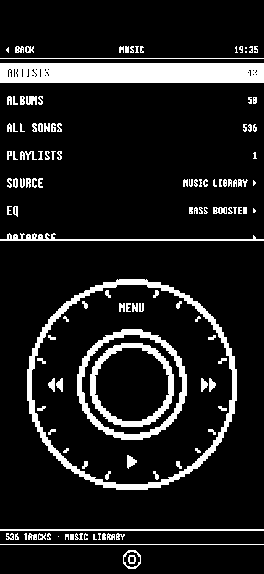
Your files, or the library already on the phone, under a click wheel you can run by feel.
HowDrop files in over USB or AirDrop, FLAC included. Or play what is already on the phone. No streaming service.
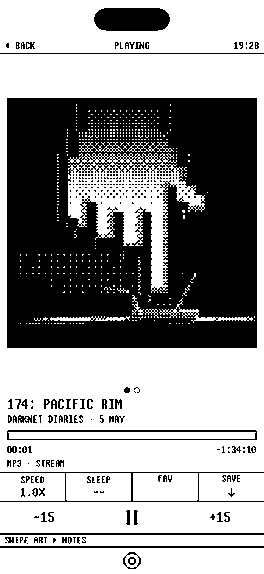
Search, subscribe, download, sleep timer. Shows you asked for.
HowPlain RSS. Downloads keep going with the app closed. Where you left off follows you.
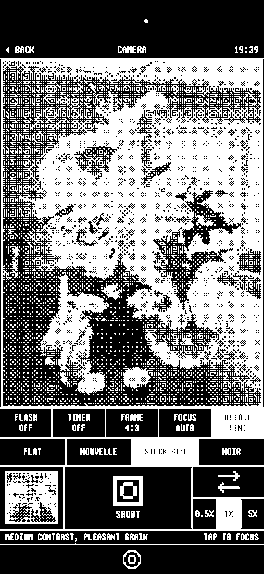
The viewfinder is already black and white. Friends come back looking like a memory.
HowEvery shot lands on its own roll, crushed to two colours as you take it.
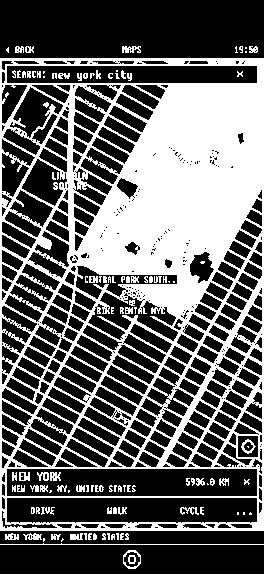
A map in pixels, with your pins. Enough to get there. Nothing to doomscroll.
HowEvery mark is ours, so anything with a label is tappable. Turn by turn hands off to Apple Maps.
One page at a time. READ pulls the article. PAGE keeps the layout and kills the colour.
HowAds blocked, scripts off until you allow a site, images optional, video refused. A terrible place to lose an hour.
Feeds you picked. Nothing else gets in. Then it ends.
HowRSS. You subscribe, it arrives, you finish. Full articles, not ragebait headlines.
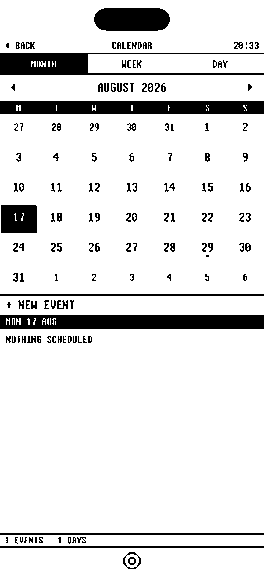
Month, day, editor. Hold a gap to start something.
HowYour real calendars. Write here, see it in Apple's Calendar, and the other way round.
Your real lists, including whatever you told Siri in the car.
HowSame lists as Reminders. Tick it here, it is ticked everywhere.
Plain text files, voice memos in the same list. No formatting rabbit hole.
HowNotes are .txt you can drag off over USB. Voice memos are .m4a beside them.
Alarms, a timer on a split flap board, a stopwatch.
HowReal system alarms on iOS 26. Notifications below that, quiet on Silent.
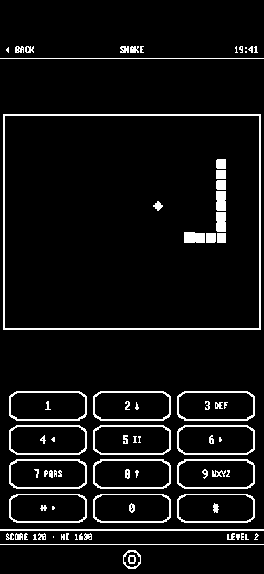
Klondike, minesweeper, snake on a drawn keypad, Brick on the wheel, Stack on a drawn handheld.
HowNo leaderboards, no accounts, no ads. Back seat of a long drive energy.
Day or night, type size, pixel face, wheel mode, which rows show, what syncs.
HowHide any section. The widgets follow. Nothing gets deleted.
Under ten minutes. Nothing gets deleted. These are the iPhone's steps: on Android the app walks you through its own, which can make 1bit your home screen.
Hold the home screen until the icons wobble, tap +, find 1bit, pick a size and tap Add Widget.
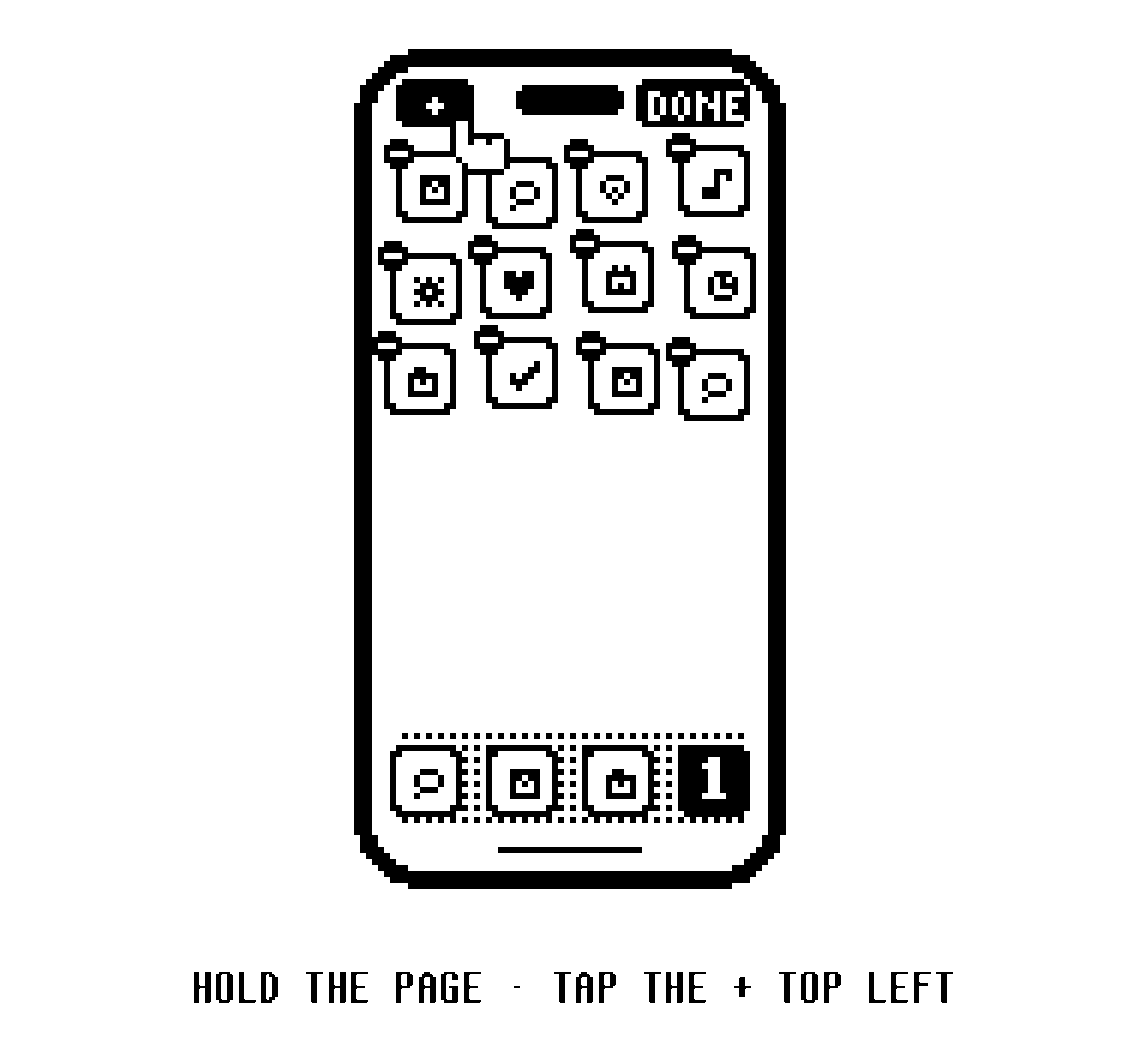
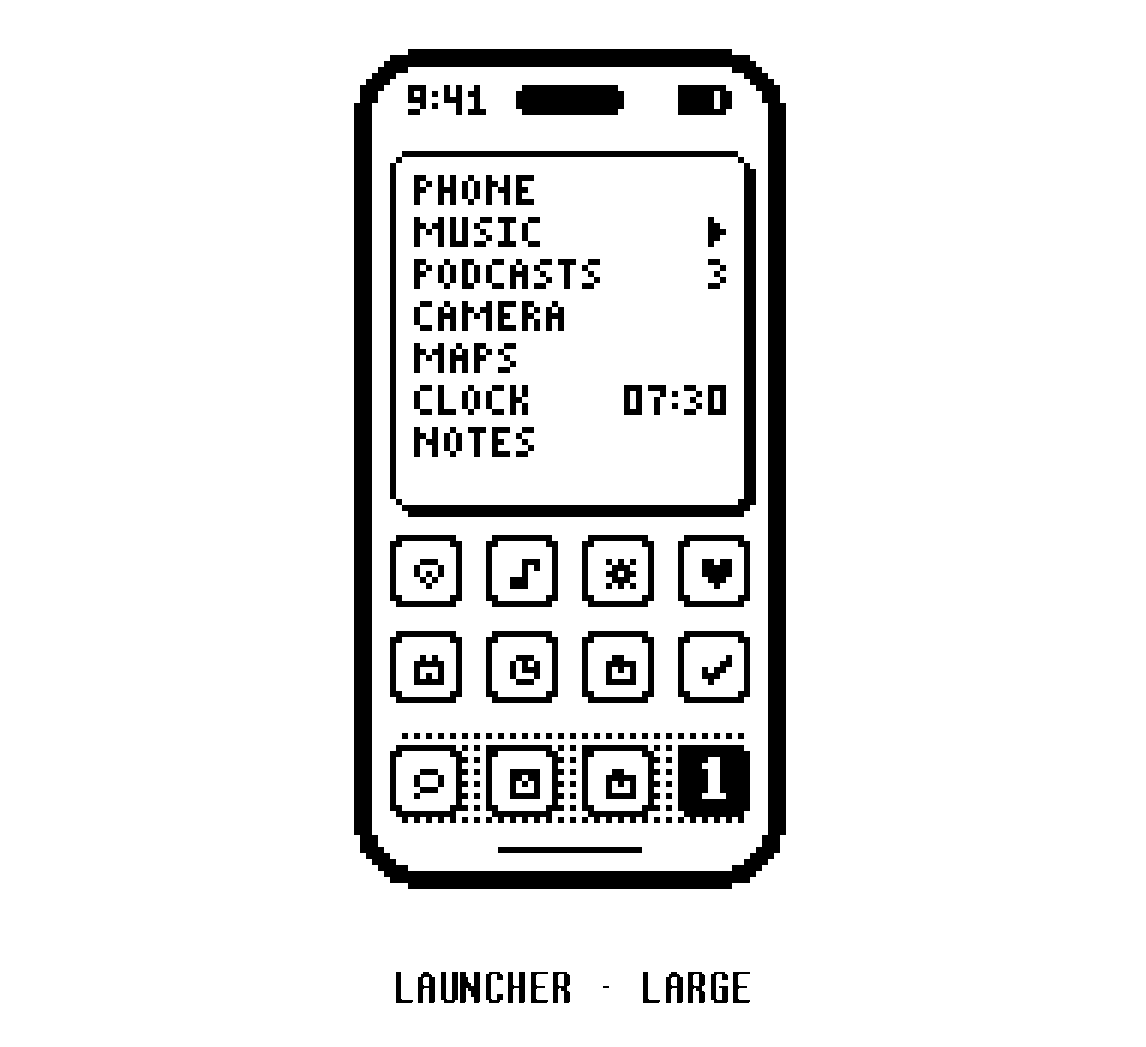
The large widget is your launcher. Tap a row and you land in that screen. Put it at the top. Long press, Edit Widget if you want to pick the rows yourself.
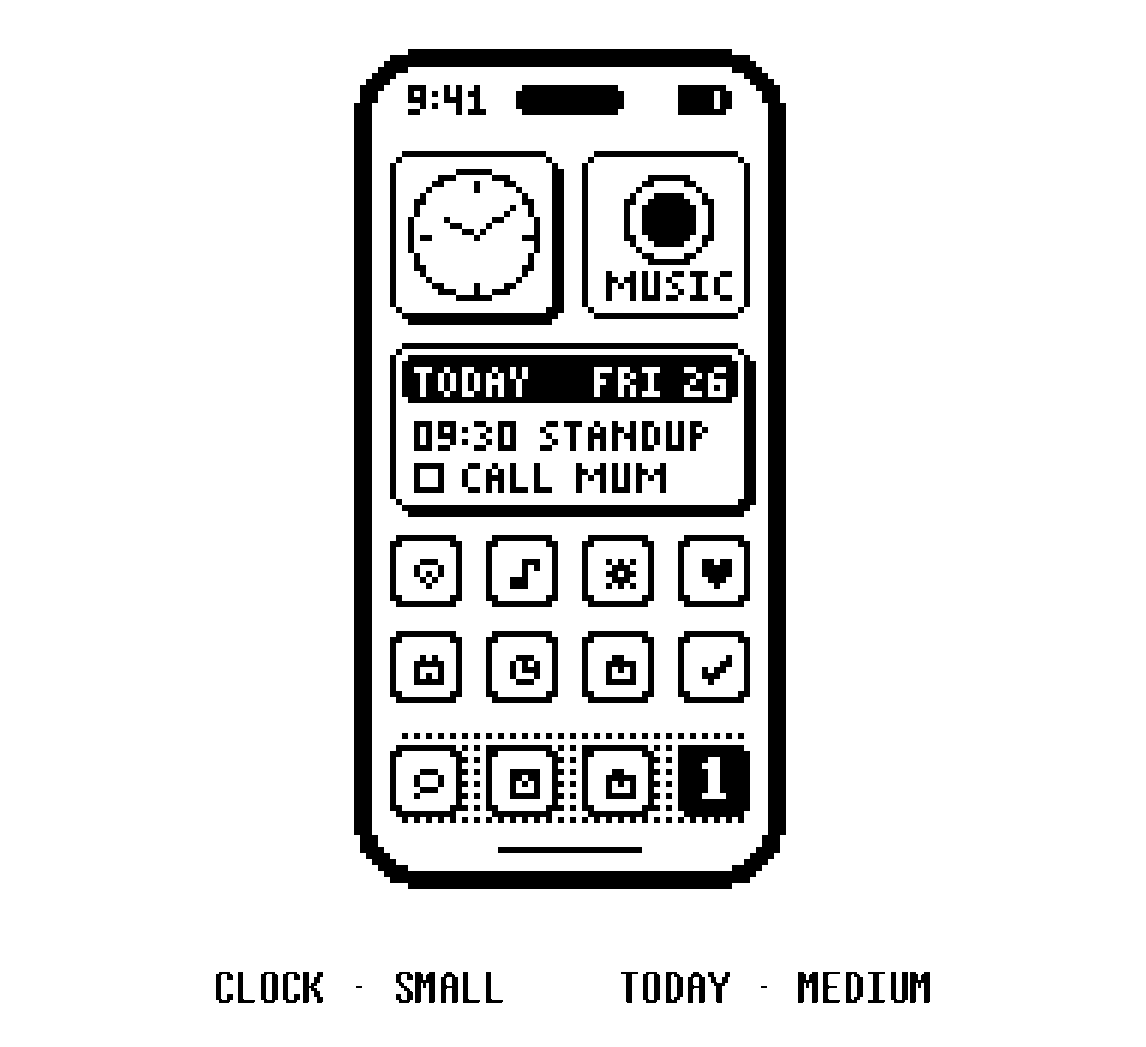
Add a small clock and a medium today underneath. There is a button widget too, for one feature a single press away.
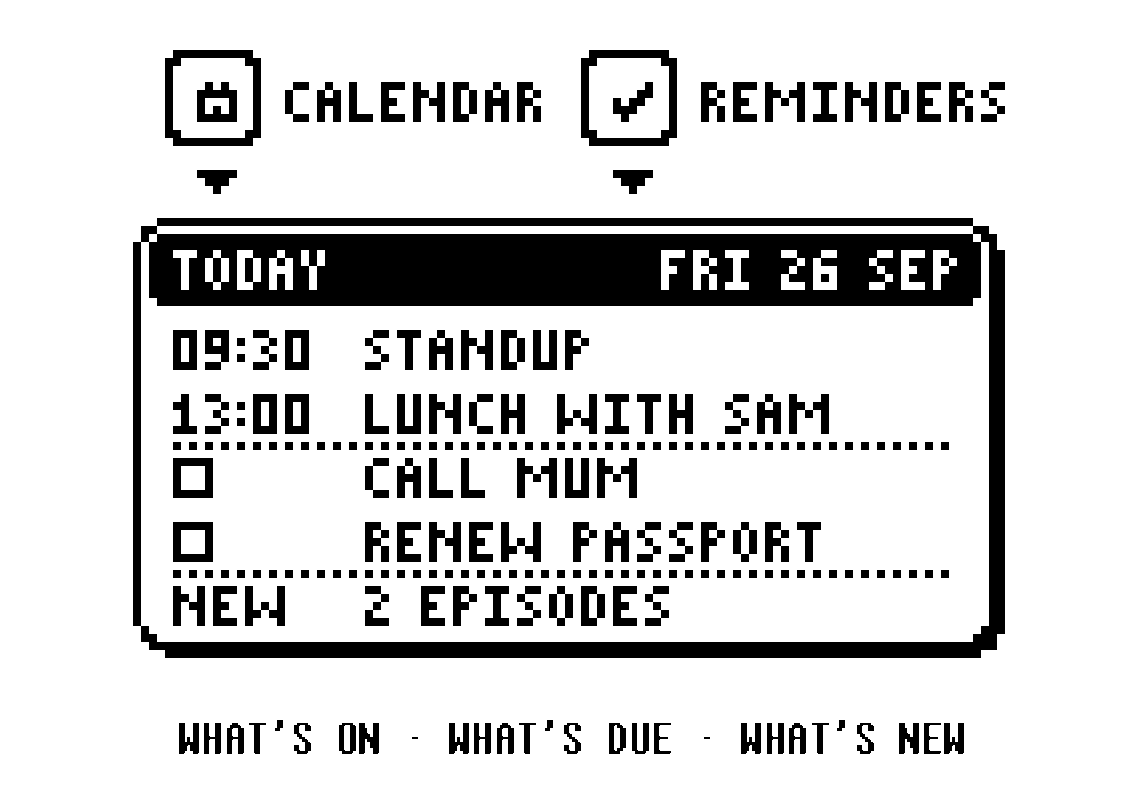
Today reads your calendar and reminders. 1bit asks for both here. Skip it if you like; it is a switch under settings, today.
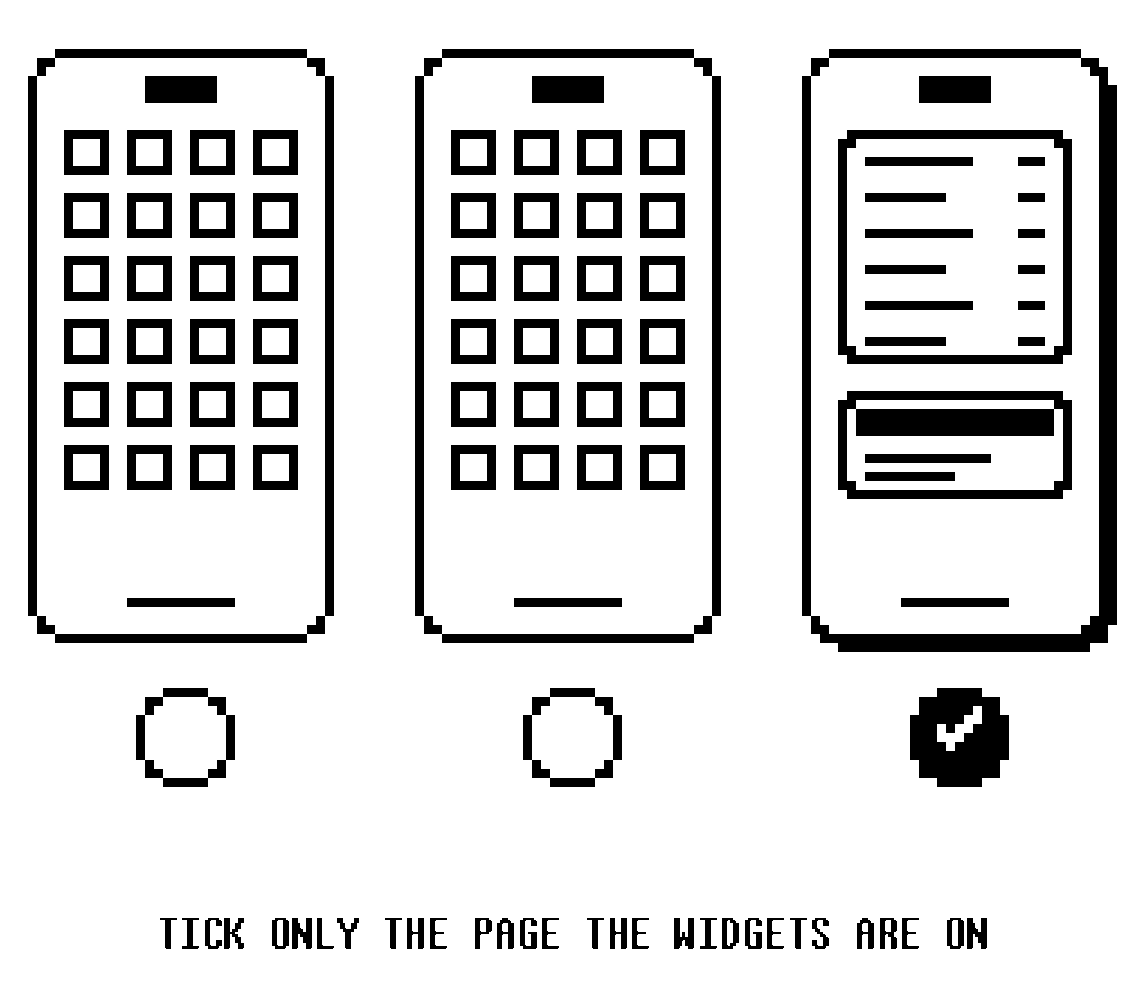
Hold the home screen, tap the dots along the bottom, and untick every page except the one with your widgets. Nothing is deleted. Everything else stays in the App Library.
Settings, Wallpaper, a plain black one for lock and home. Turn depth effects off.
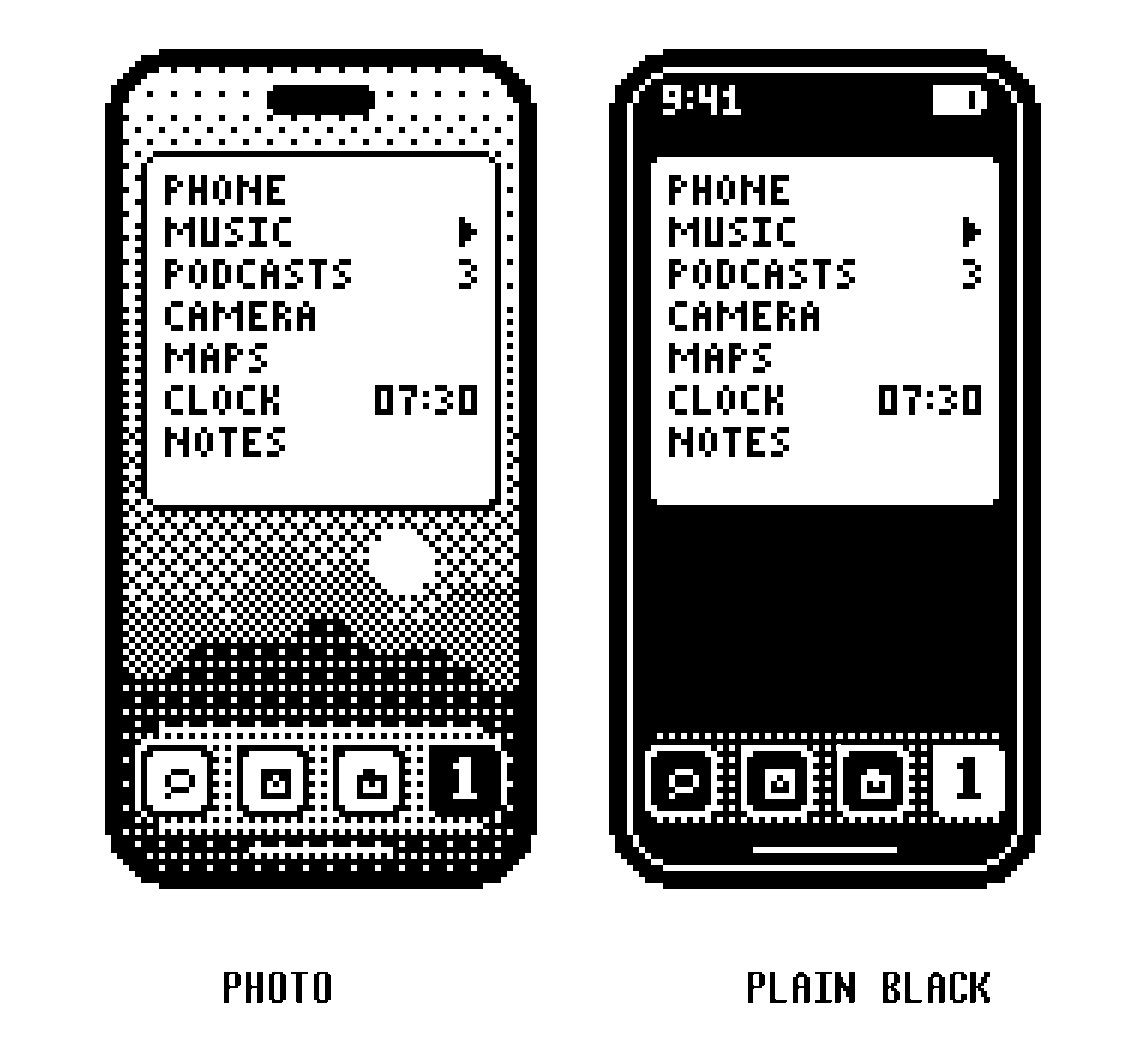
Optional. Settings, Accessibility, Display & Text Size, Color Filters, Grayscale. Set the Accessibility Shortcut to Color Filters and a triple click brings colour back.
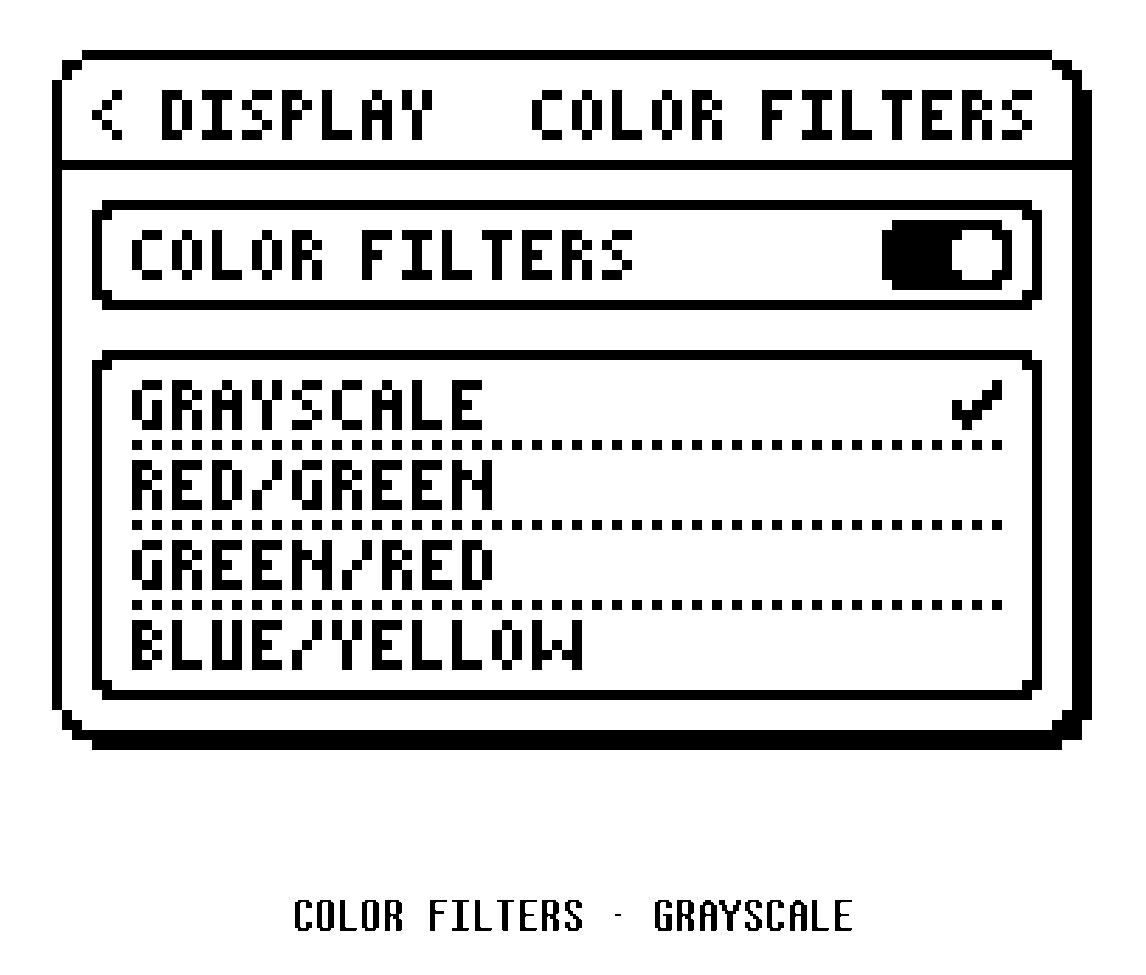
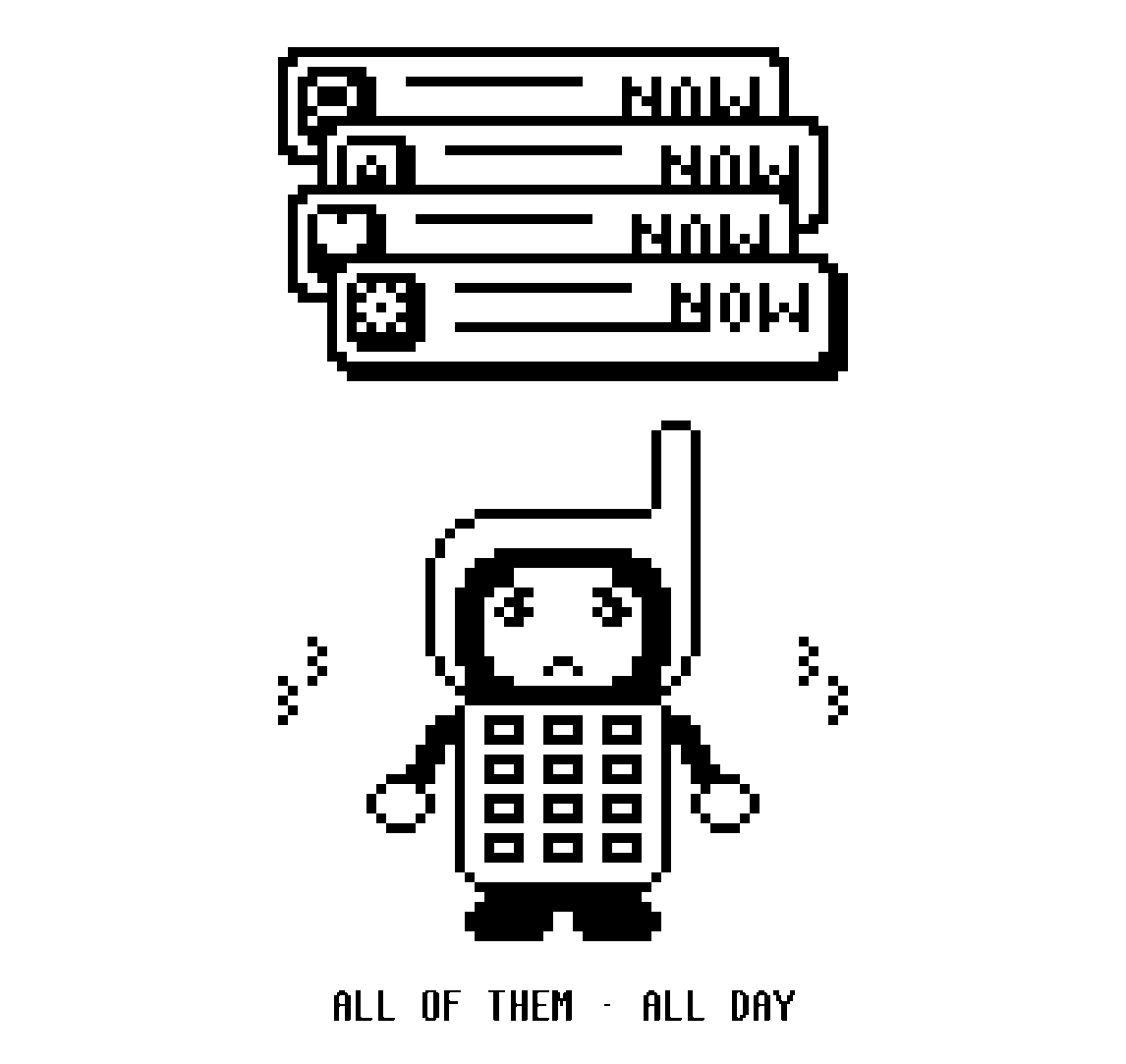
Make a Focus that only lets calls and messages from your favourites through, and leave it on.
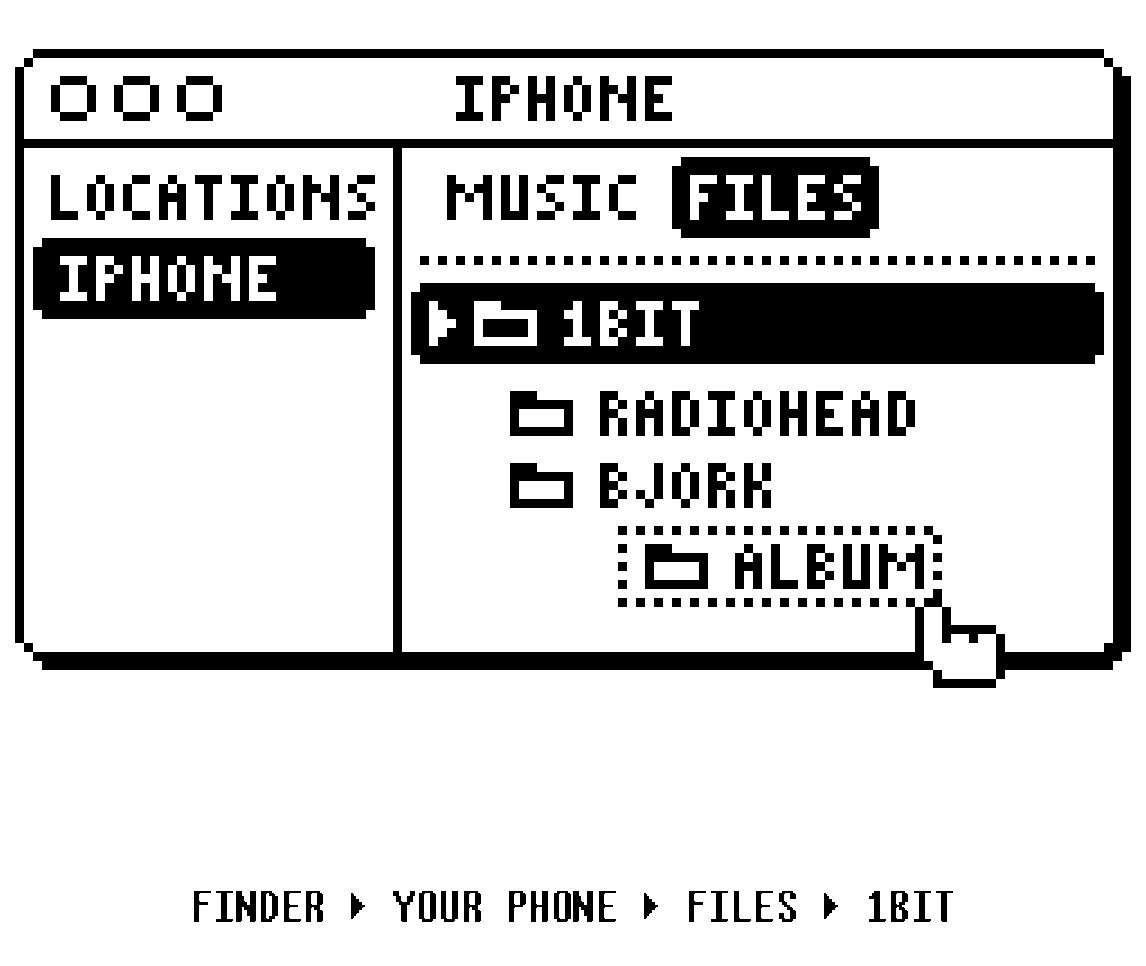
Drop folders into Finder, your phone, Files, 1bit. Or switch Music's source row to the library already on this phone.
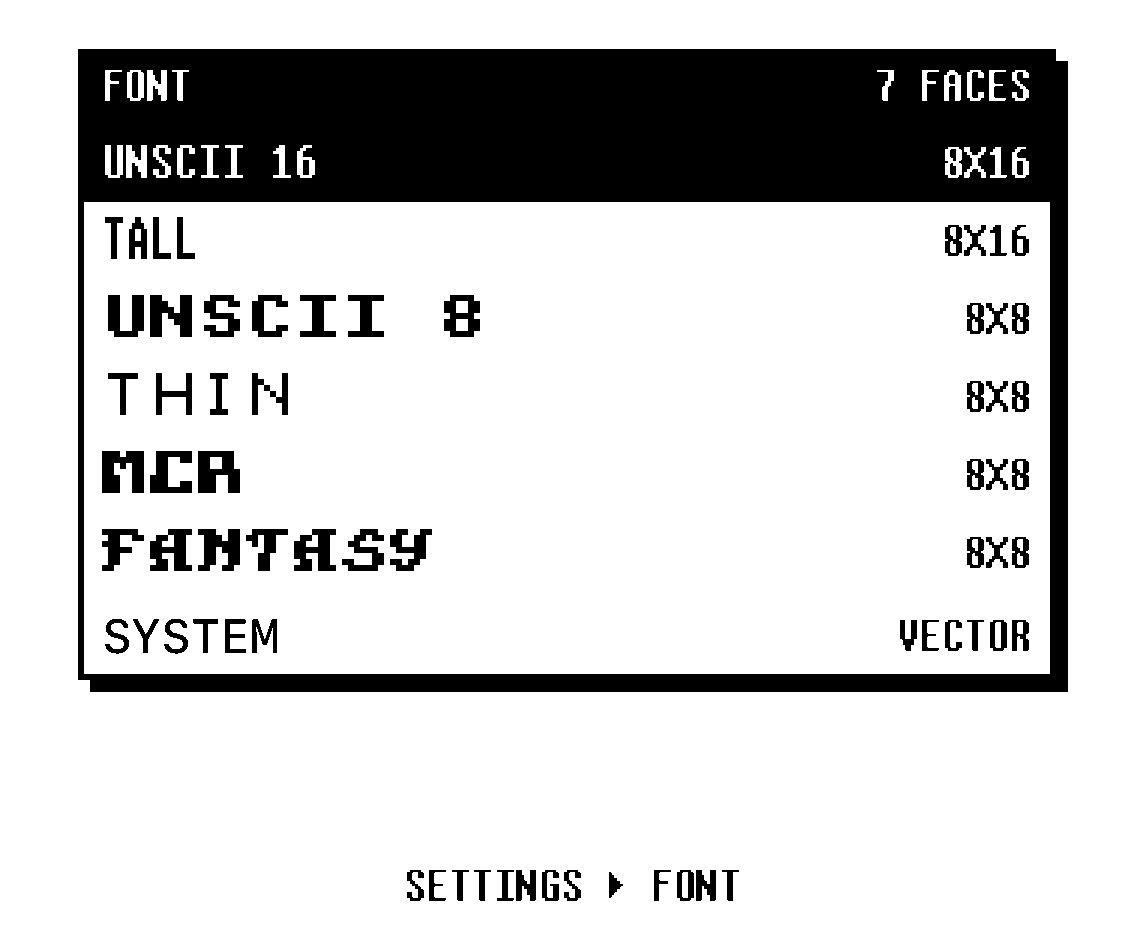
Settings, font. Six pixel faces. Pick whichever you like reading.
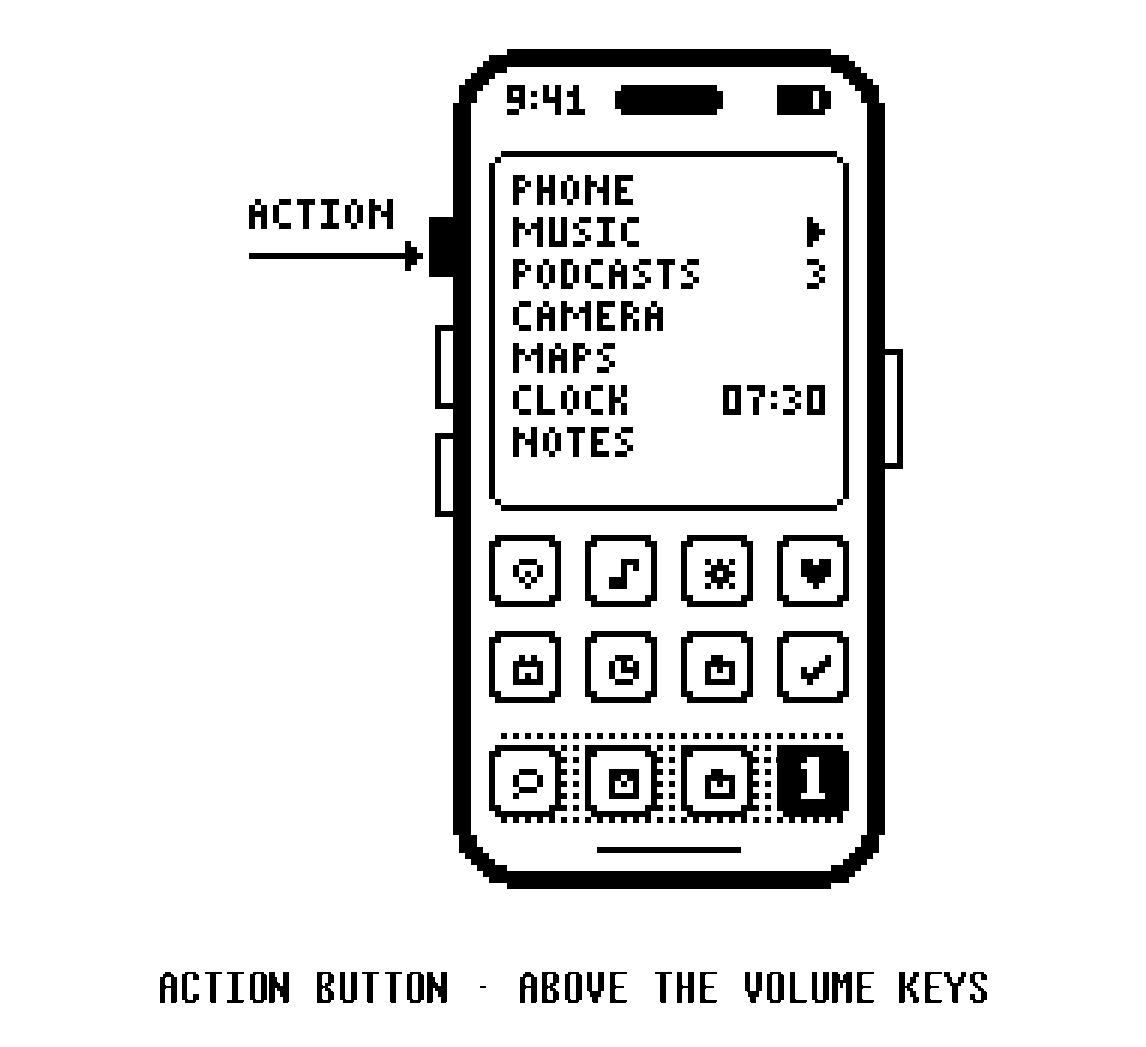
If you have one: Settings, Action Button, Open App, 1bit.
Where your things live and what leaves the app.
Sync is iCloud between your own devices. No account of ours. Each kind of thing is a switch, and the app works with all of them off.
Decisions travel: feeds, positions, notes, pins, playlists, alarms. Photographs travel too, once you switch them on. Recordings stay on the phone that made them.
Plug in and open Finder, your phone, Files, 1bit. Drop folders in. AirDrop reaches the same place. MP3, AAC, WAV, AIFF and FLAC all play.
Or skip that: Music's source row switches to the library already on the phone and plays those songs where they sit.
Four things leave with one tap: a call to the dialler, a message to Messages or Signal or WhatsApp, turn by turn to Apple Maps, and a library track the media server will not stream to the Music app.